Register with Discord
The first step in getting PBot running is registering your private bot with Discord to obtain an API key. Navigate to the Discord Developer Portal.
Create a New Application
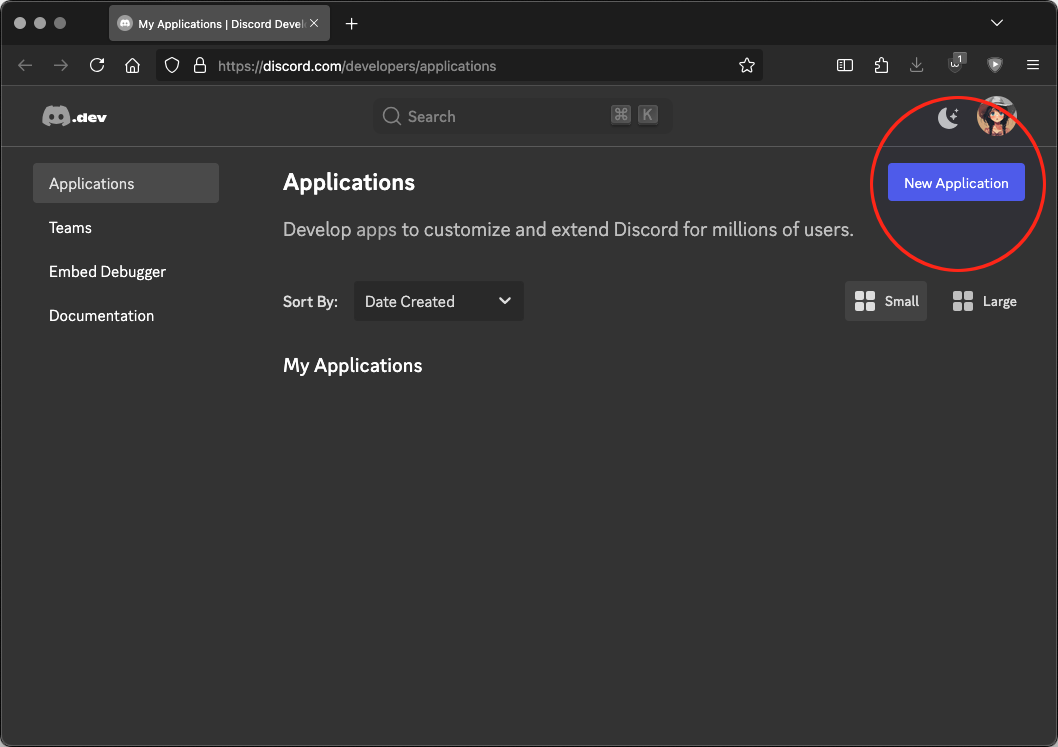
Click on the New Application button to start the process of registering your bot.
Name the Application
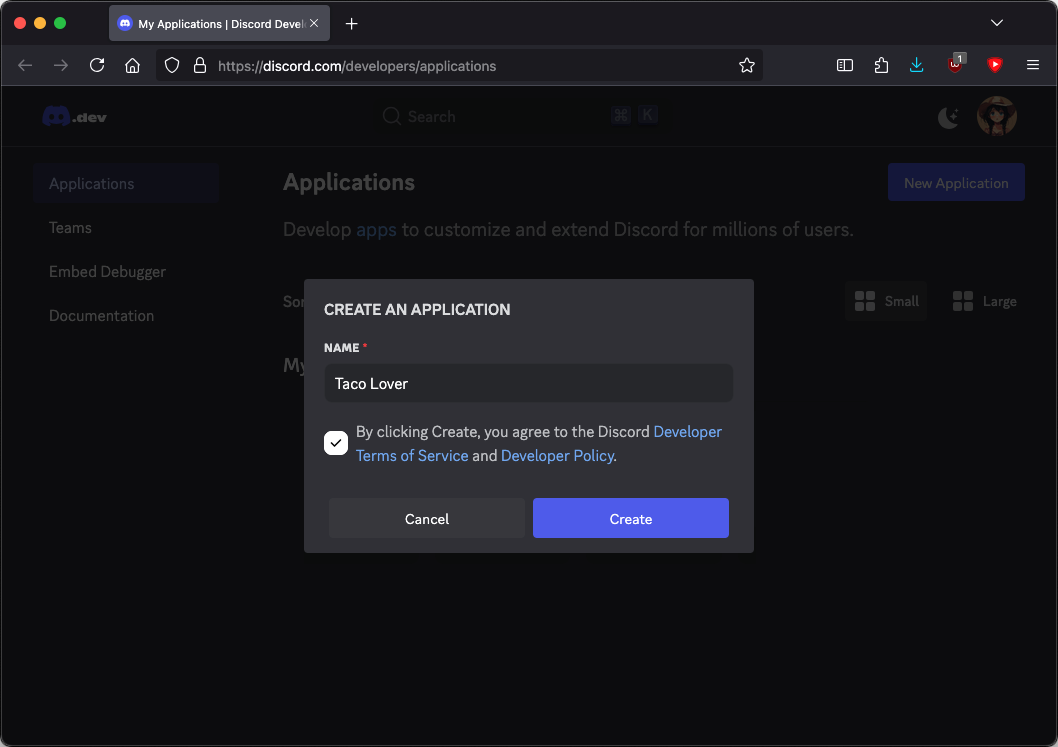
You’ll first be prompted to name your bot. This is how the bot will be displayed to your users. In this guide, we will be building a bot that disseminates taco recipes to the masses; thus, we will name it simply “Taco Lover.”
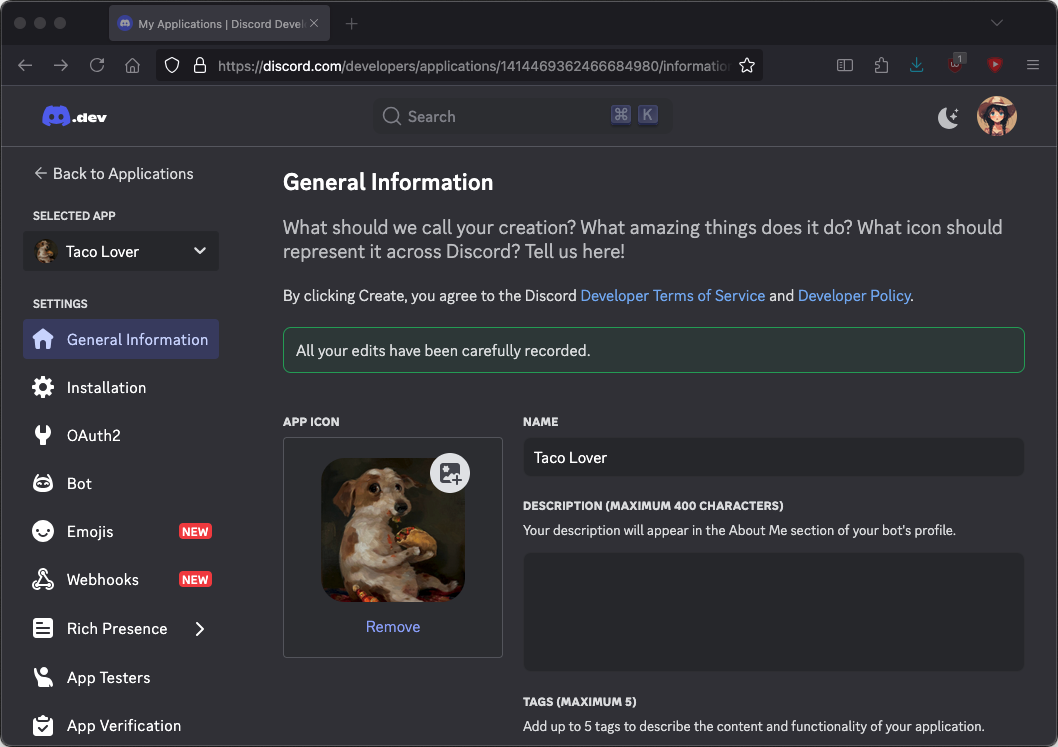
Set a Profile Picture
Now that the bot is registered, we can add a profile picture for it.
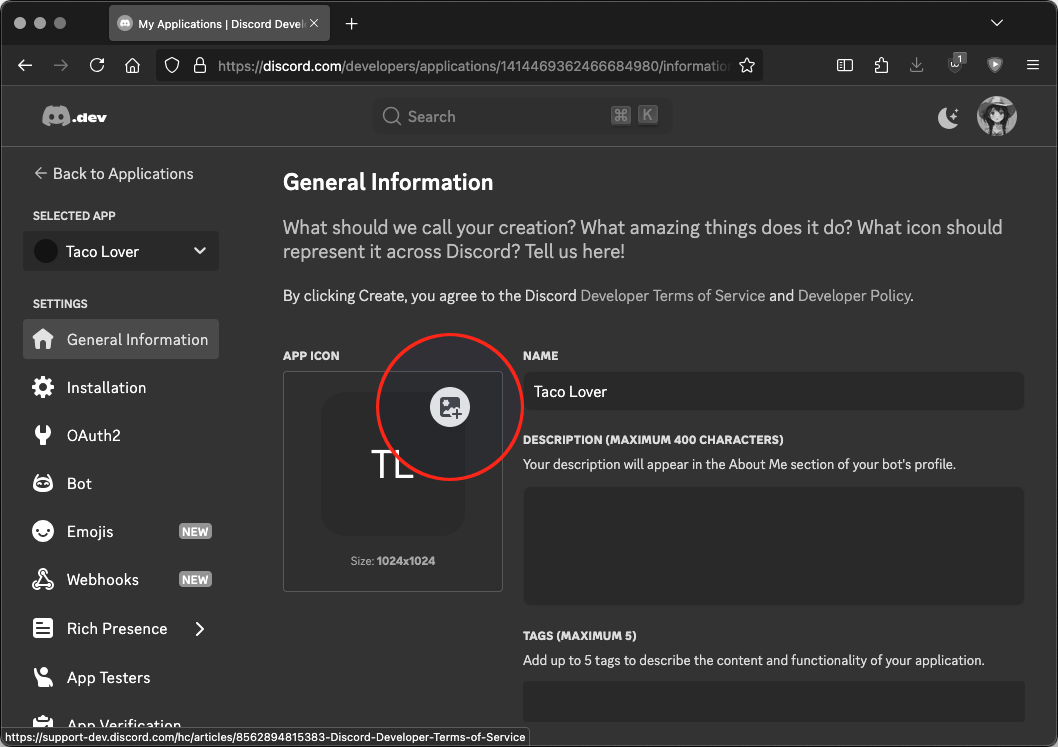
We will use McFriendy's Taco Lover (2024) as the bot's profile picture.
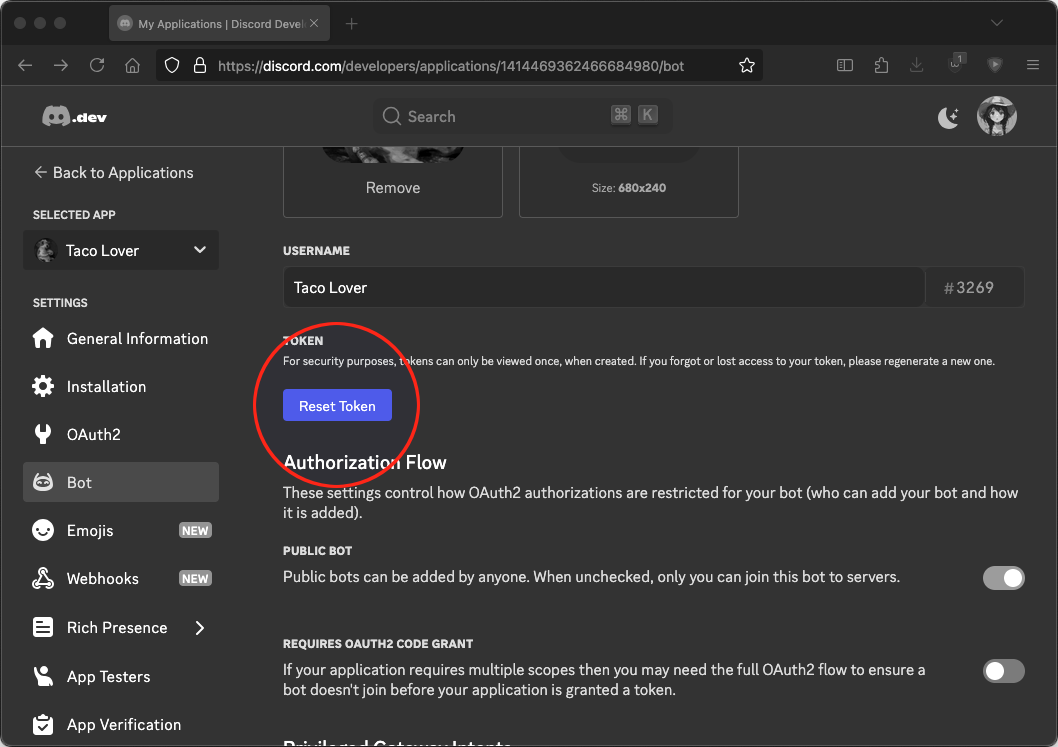
Reset Auth Token
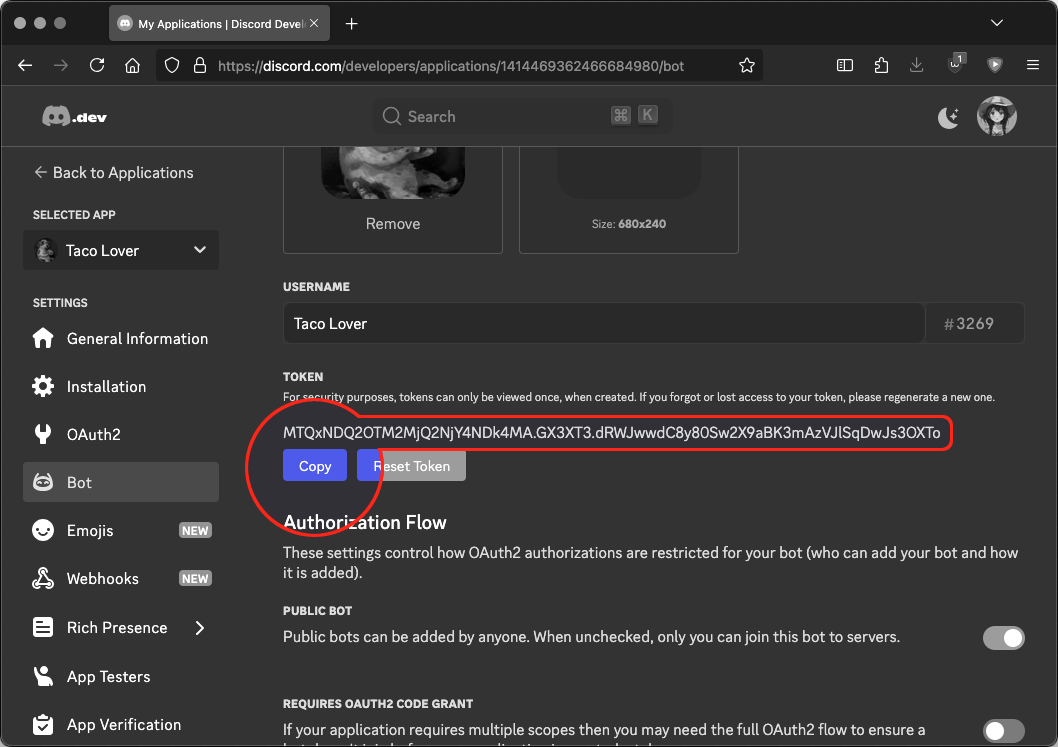
Once you've customized your application, navigate to the Bot page under Settings and click on the Reset Token button.
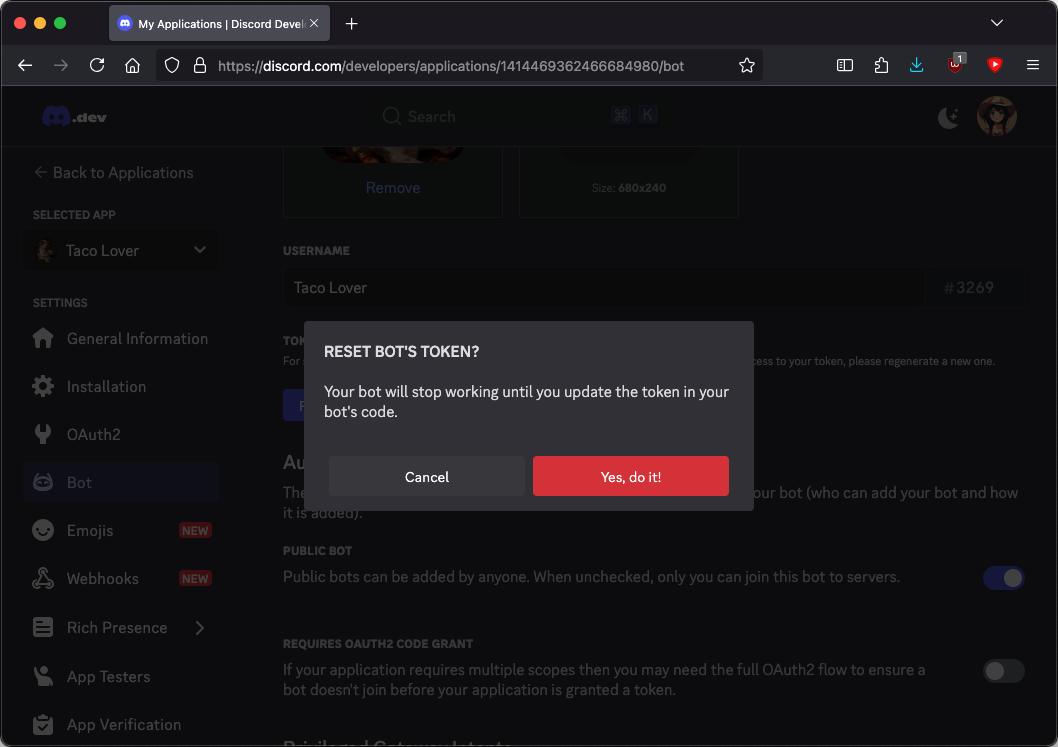
Confirm Token Reset
You will be prompted for confirmation, as this would usually break any apps using a previous token.
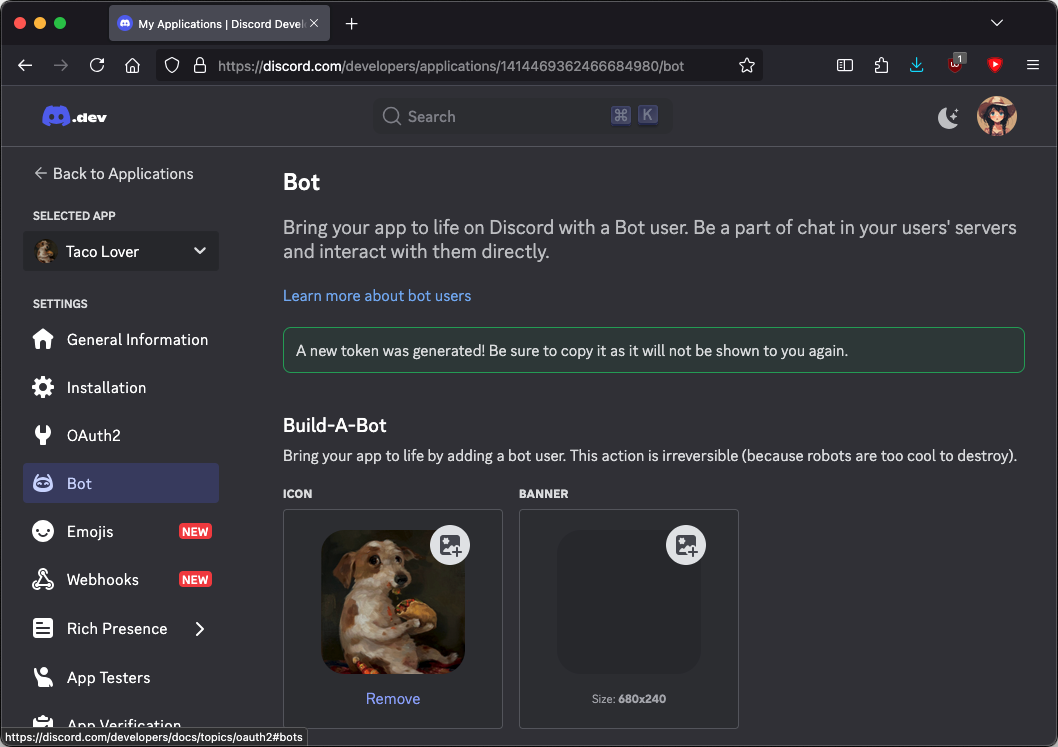
Copy Auth Token
After doing so, the page will only display your secret token temporarily. Copy it down now in a secure location.
Set Bot Intentions
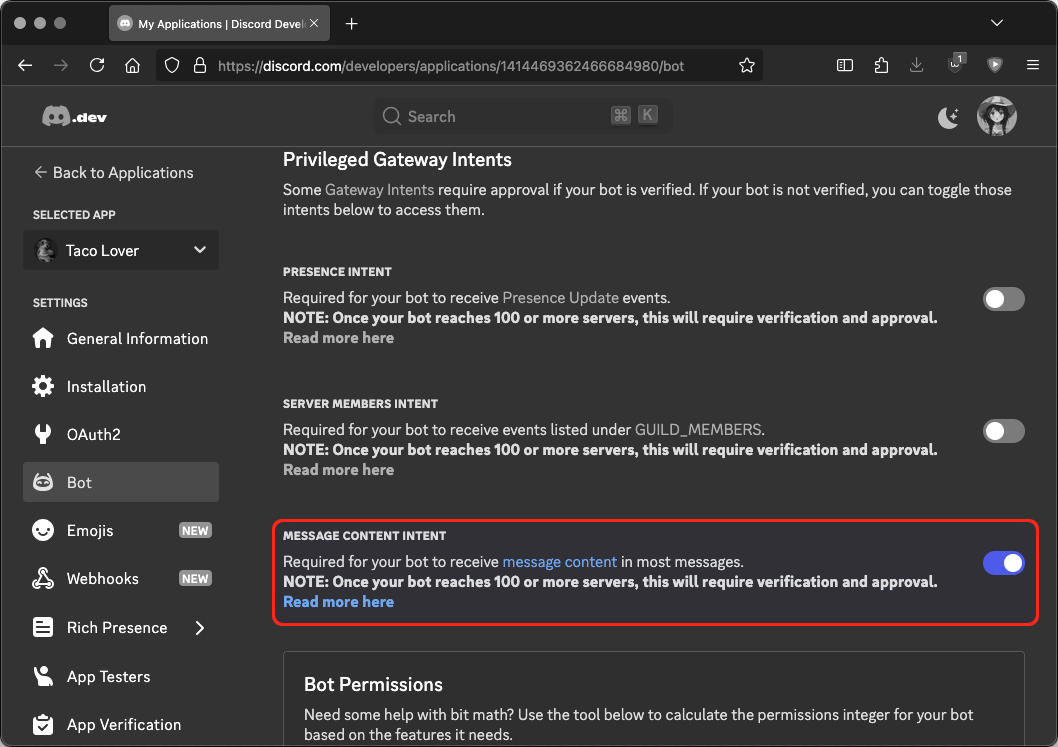
Under Privileged Gateway Intents, you'll need to turn on MESSAGE CONTENT INTENT to allow your bot to view message contents.
Bot Installation Setup
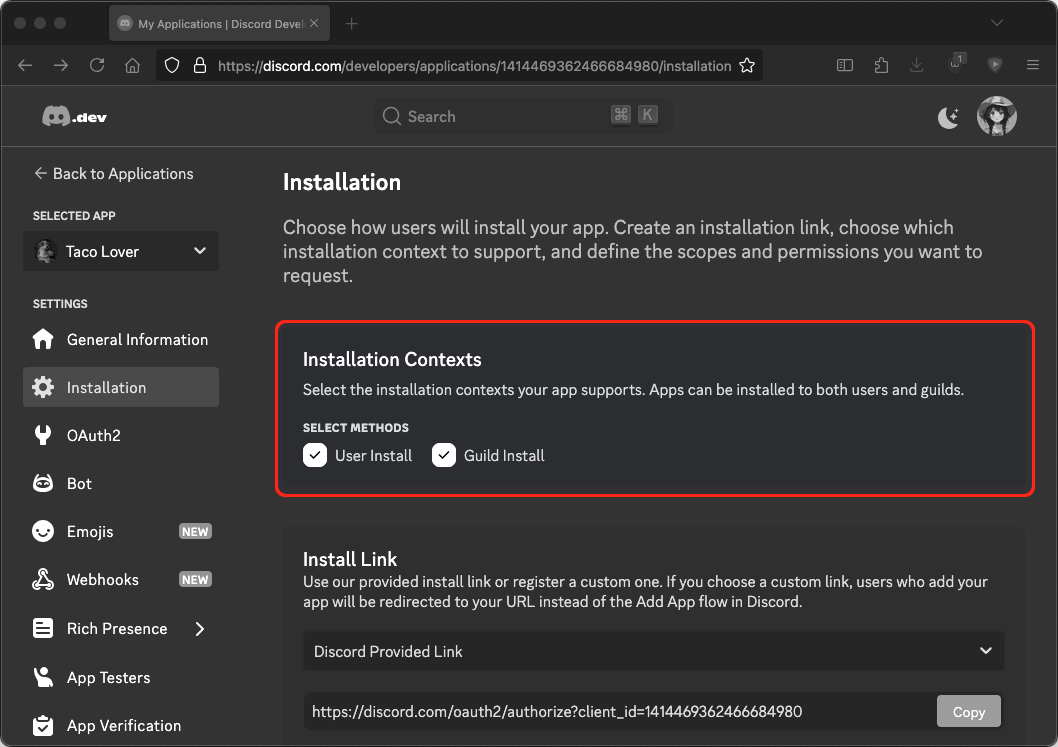
Now, navigate to the Installation page under Settings.
Install Contexts
Beneath Installation Contexts, ensure Guild Install is checked.
Scopes
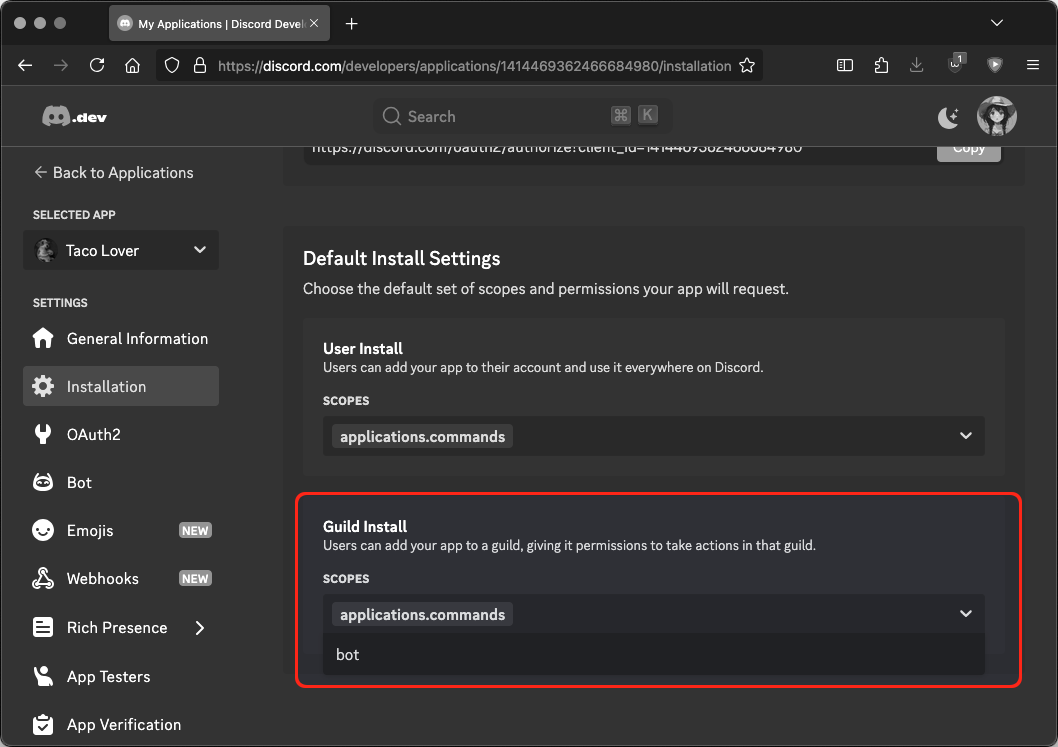
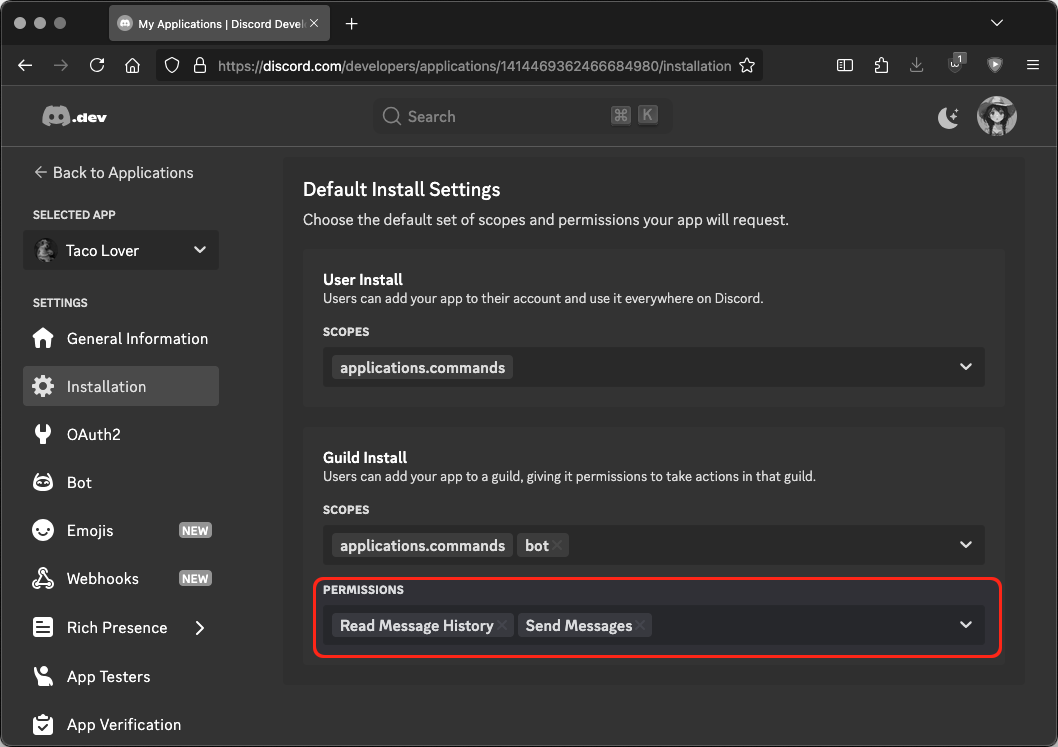
Scroll down to Default Install Settings, and then select bot for SCOPES.
Pemissions
For PERMISSIONS, you'll want a minimum of Read Message History and Send Messages. For more complex bots, you'll likely need additional permissions.
Install Link
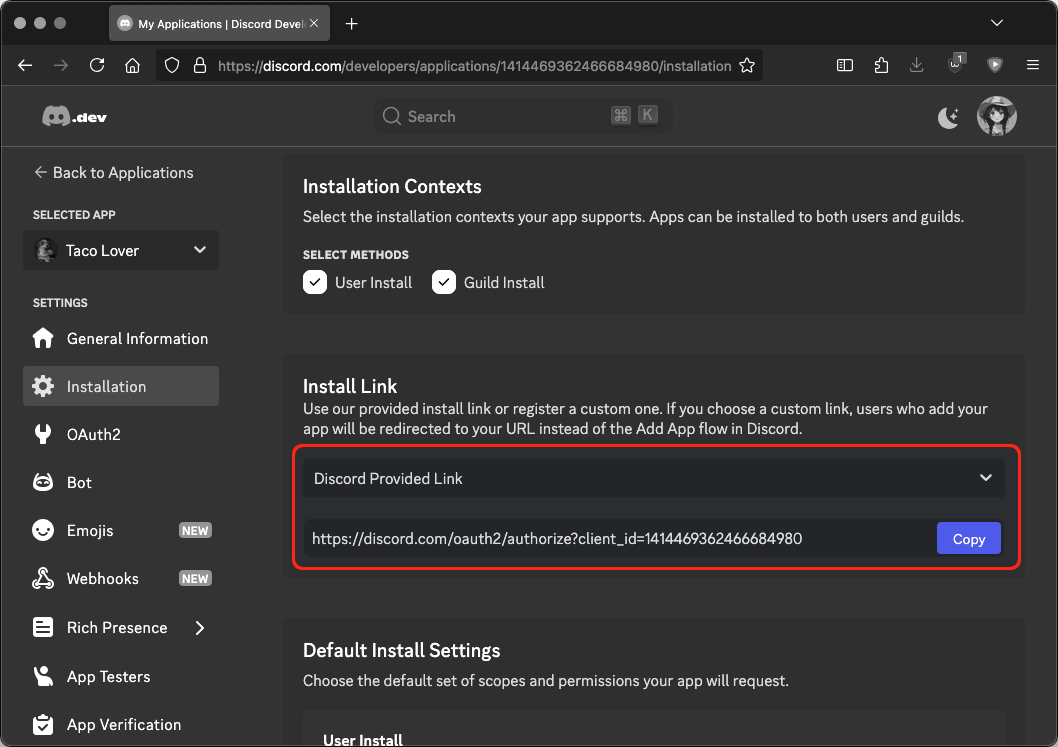
Now, scroll up to Install Link and select Discord Provided Link.
Copy the generated Discord link. It'll start with https://discord.com/oauth2/...
Adding a Bot
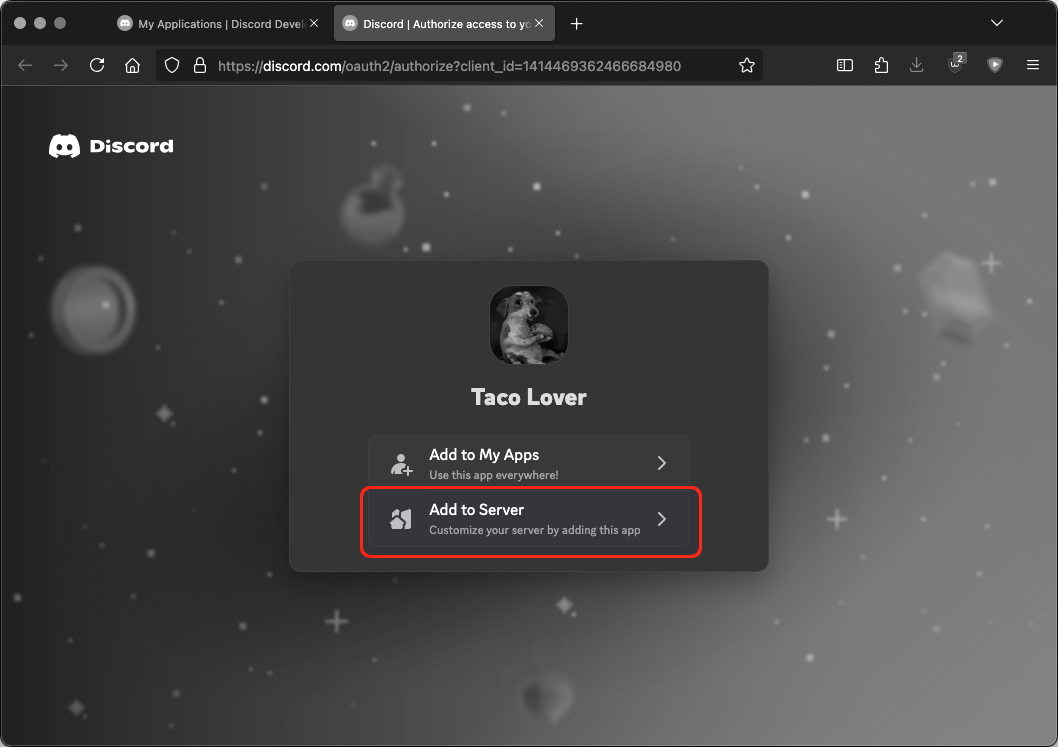
Open the provided Discord link and select Add to Server.
Review Pemissions
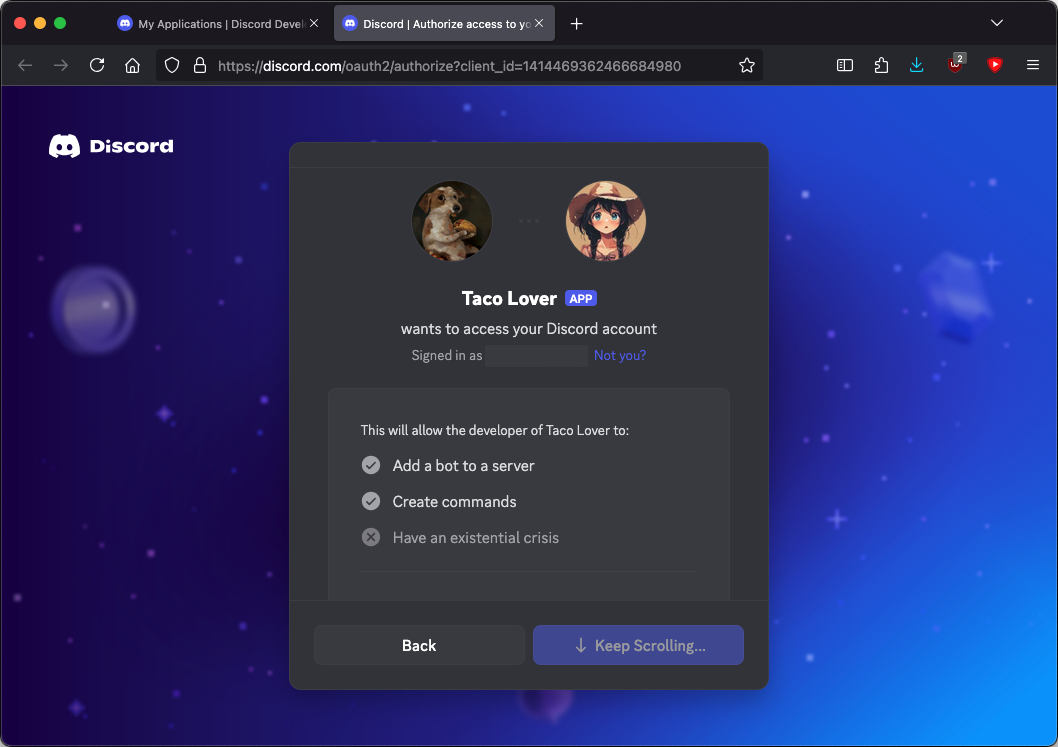
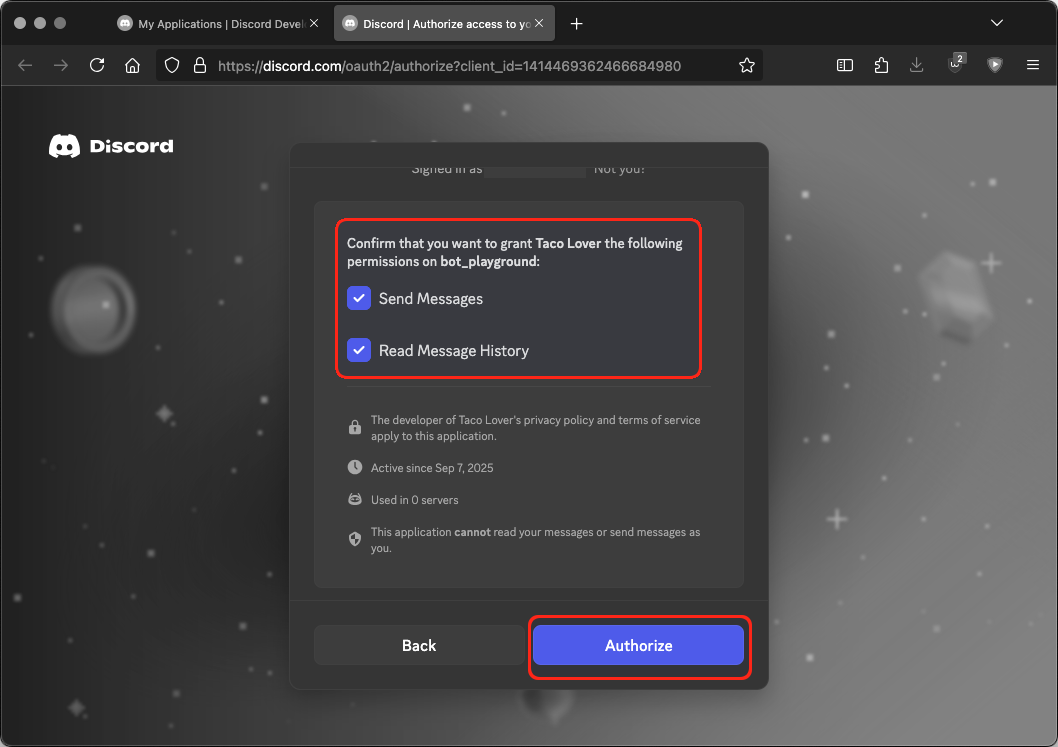
Review the permissions listed.
Select Server
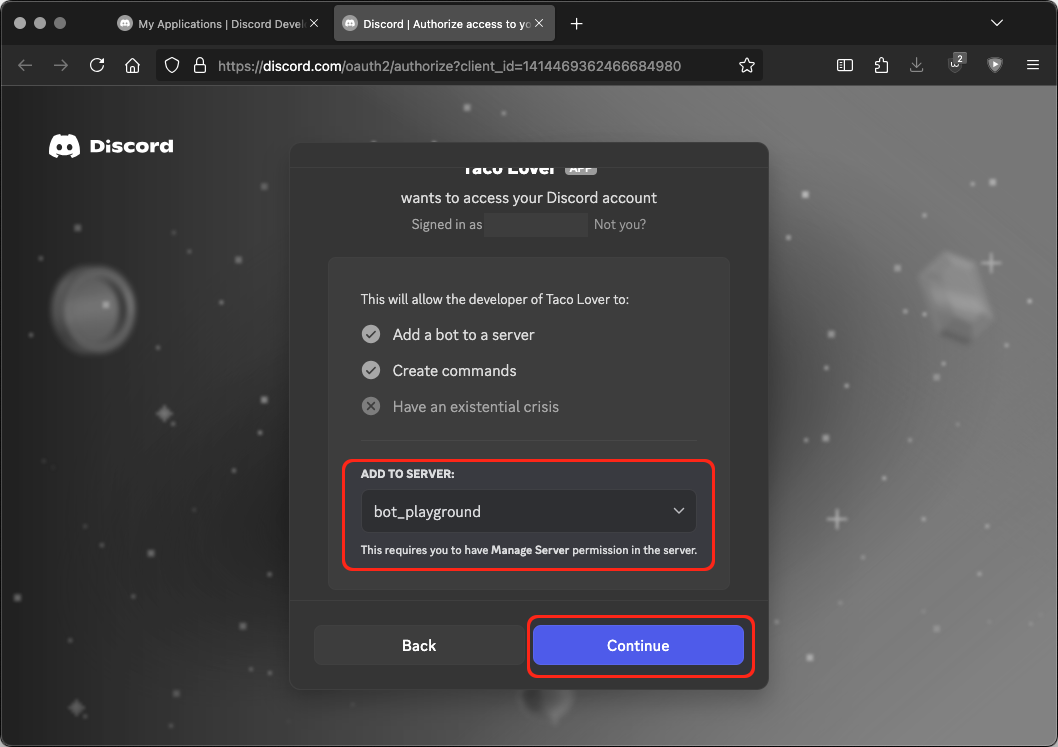
Select the server you wish to add the bot to.
Authorize
If you're satisfied, click Authorize.
Success!
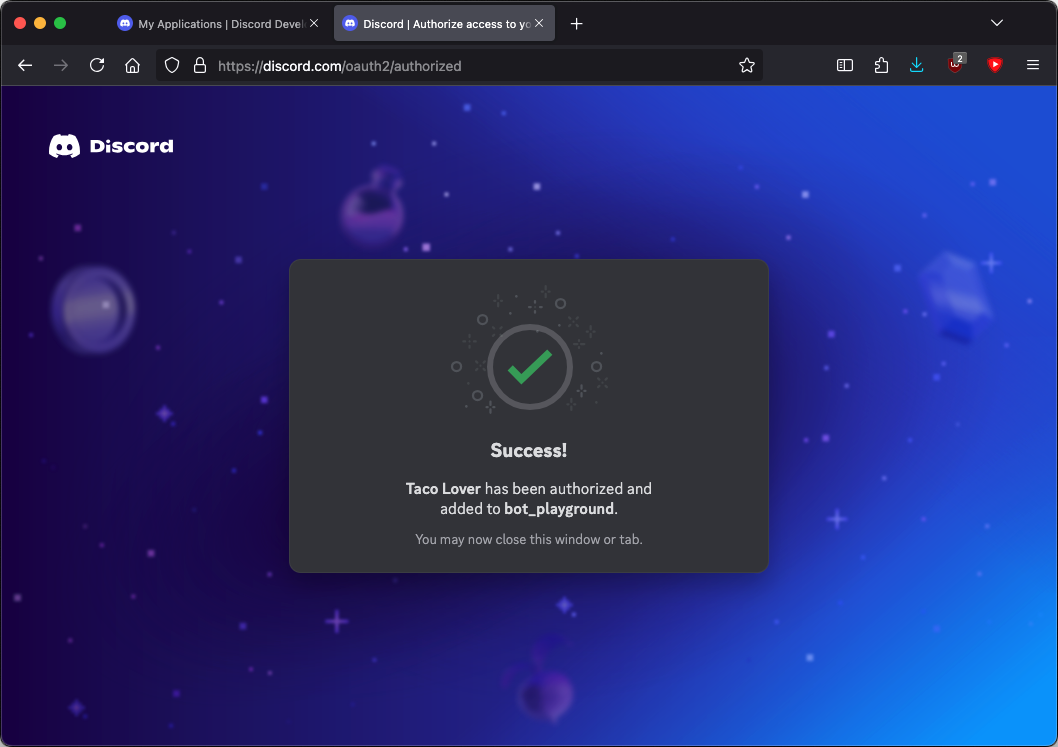
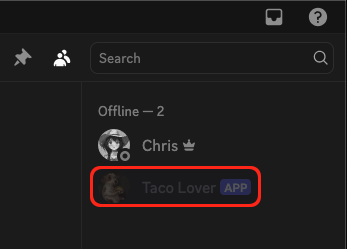
At this time, your bot should have already joined the server.

The bot, however, is not yet active. That will change when we get your instance of PBot running in the next section.